
Azure status
This guide explains how to connect your Microsoft Azure account to StatusGator so you can monitor Azure Resource Health events affecting your own infrastructure.
Once connected, StatusGator automatically imports incidents, outages, maintenance events, and availability status updates that affect your Azure resources. This allows you to receive alerts about problems specific to your subscriptions instead of relying only on Azure’s public status page.
The integration works by allowing StatusGator to read data from the Azure Resource Health API, which provides information about outages, service degradation, and maintenance affecting your resources.
To enable the integration, you will create a dedicated Azure user, define a custom role with limited read permissions, assign the role to that user, and then connect the account in StatusGator.
Note for existing Azure integrations
If you are already using the previous Azure integration, you can upgrade to the new version directly from your existing integration settings.
Go to your Azure integration in StatusGator and click "Upgrade to OAuth", then follow the updated setup process described in this guide. The new integration uses Azure management groups and a Microsoft-approved authentication method.
Before you begin
To complete this setup you must have permission in Azure to:
- Create users in Microsoft Entra ID
- Create custom RBAC roles
- Assign roles at the subscription or management group level
Typically this requires Owner or User Access Administrator permissions in Azure.
Step 1. Create a dedicated Azure user
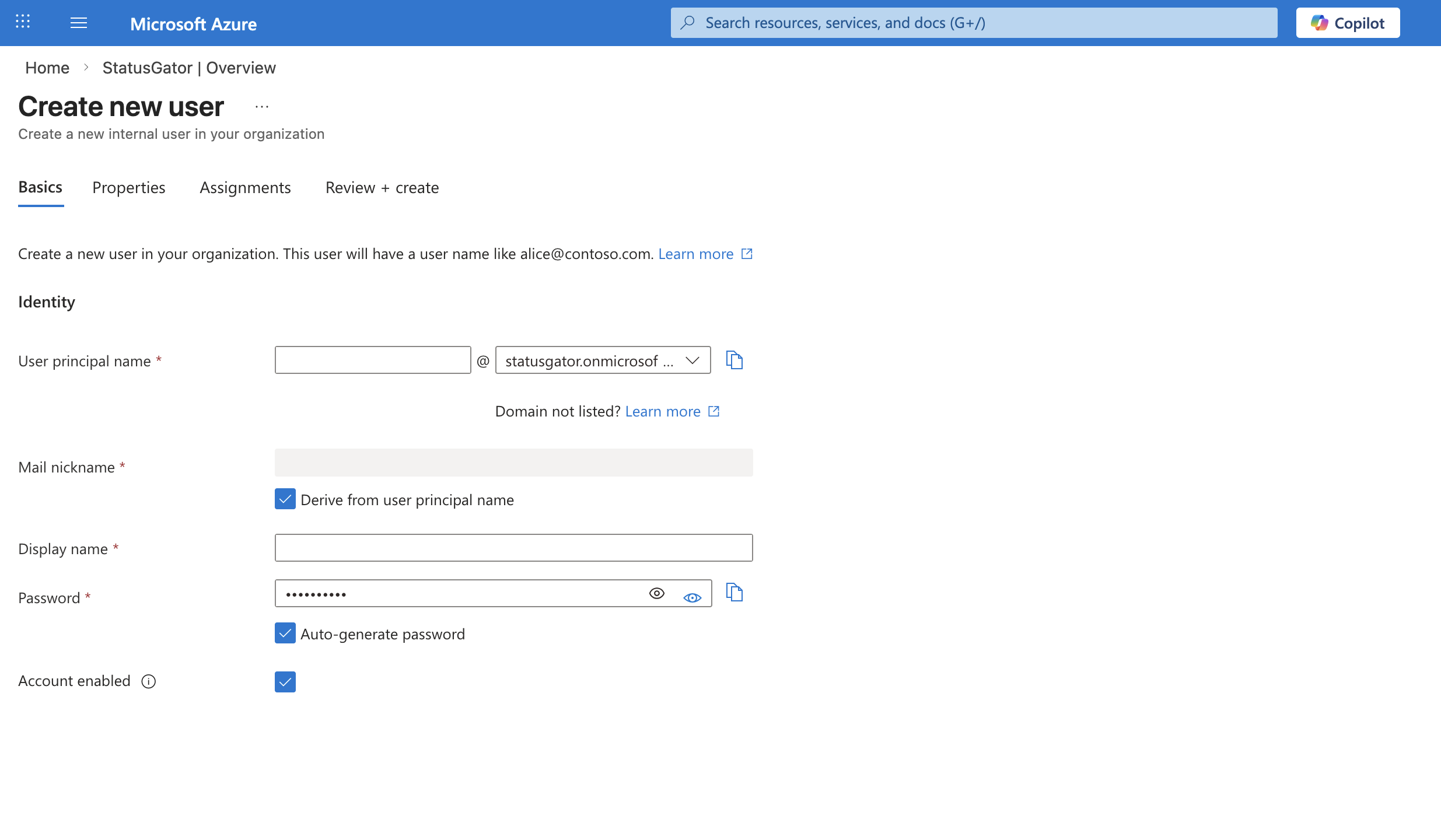
StatusGator should access Azure using a dedicated account rather than a personal user account. This makes it easier to manage permissions and revoke access later if needed.
- Sign in to the Azure portal.
- Navigate to Microsoft Entra ID.
- From the Overview page, select + Add.
- Choose User, then select Create new user.
- Enter the required user details and create the account.
- Save the username and temporary password.
After creating the user:
- Sign in once using the new account.
- Change the temporary password when prompted.
- Complete the profile setup and configure multi-factor authentication (2FA) if required.
This user will later be assigned a limited read-only role that allows StatusGator to access Azure Resource Health data.
Step 2. Choose where to grant StatusGator access
Before creating the custom role, decide where in the Azure hierarchy you want StatusGator to have access.
Azure resources are organized in the following hierarchy:
Tenant root group
→ Management groups
→ Subscriptions
→ Resource groups
→ Resources
Permissions assigned higher in the hierarchy automatically apply to everything below it. For example, a role assigned at a management group will apply to all subscriptions and resources under that group.
In the Azure portal:
- Open Resource Manager.
- Select Management groups.
- You will see the hierarchy starting with the Tenant Root Group, followed by any management groups and subscriptions.
You have two options for granting access:
Option 1 — Assign access at the Tenant Root Group
Grant the role once at the Tenant Root Group if you want StatusGator to read health events across all management groups and subscriptions.
Option 2 — Assign access per management group
Grant the role to specific management groups if you only want StatusGator to monitor certain environments or subscriptions.
In the example shown in the video, the role is assigned at the management group level. If you want to monitor multiple management groups, repeat the setup for each one.
Step 3. Create the custom role

- In the Azure portal, go to
Resource Manager → Management groups.
Select the management group (or Tenant Root Group) where you want to grant access.
Open Access control (IAM).
Click Add → Custom role.
Choose JSON tab.
Paste the following role definition:
{
  "properties": {
    "roleName": "StatusGator Azure Resource Health Reader",
    "description": "Allows StatusGator to read Azure Resource Health events",
    "assignableScopes": [
    ],
    "permissions": [
      {
        "actions": [
          "Microsoft.ResourceHealth/events/read",
          "Microsoft.ResourceHealth/AvailabilityStatuses/read",
          "Microsoft.ResourceHealth/emergingissues/read",
          "Microsoft.ResourceHealth/operations/read"
        ],
        "notActions": [],
        "dataActions": [],
        "notDataActions": []
      }
    ]
  }
}
- In assignable scopes tab - select entities you would want to give access to.
Select Review + create to finish creating the role.
Step 4. Understand the permissions in the role
The permissions in the role allow StatusGator to read Azure Resource Health information without modifying anything in your account.
Microsoft.ResourceHealth/events/read
Allows reading Resource Health events such as outages, service interruptions, and maintenance affecting your resources.
Microsoft.ResourceHealth/AvailabilityStatuses/read
Retrieves the current availability status for resources within the scope.
Microsoft.ResourceHealth/emergingissues/read
Provides information about new or developing issues that may affect resources.
Microsoft.ResourceHealth/operations/read
Allows the API to discover available Resource Health operations.
These permissions are read-only, meaning StatusGator cannot create, modify, or delete any Azure resources.
Step 5. Assign the role to the integration user
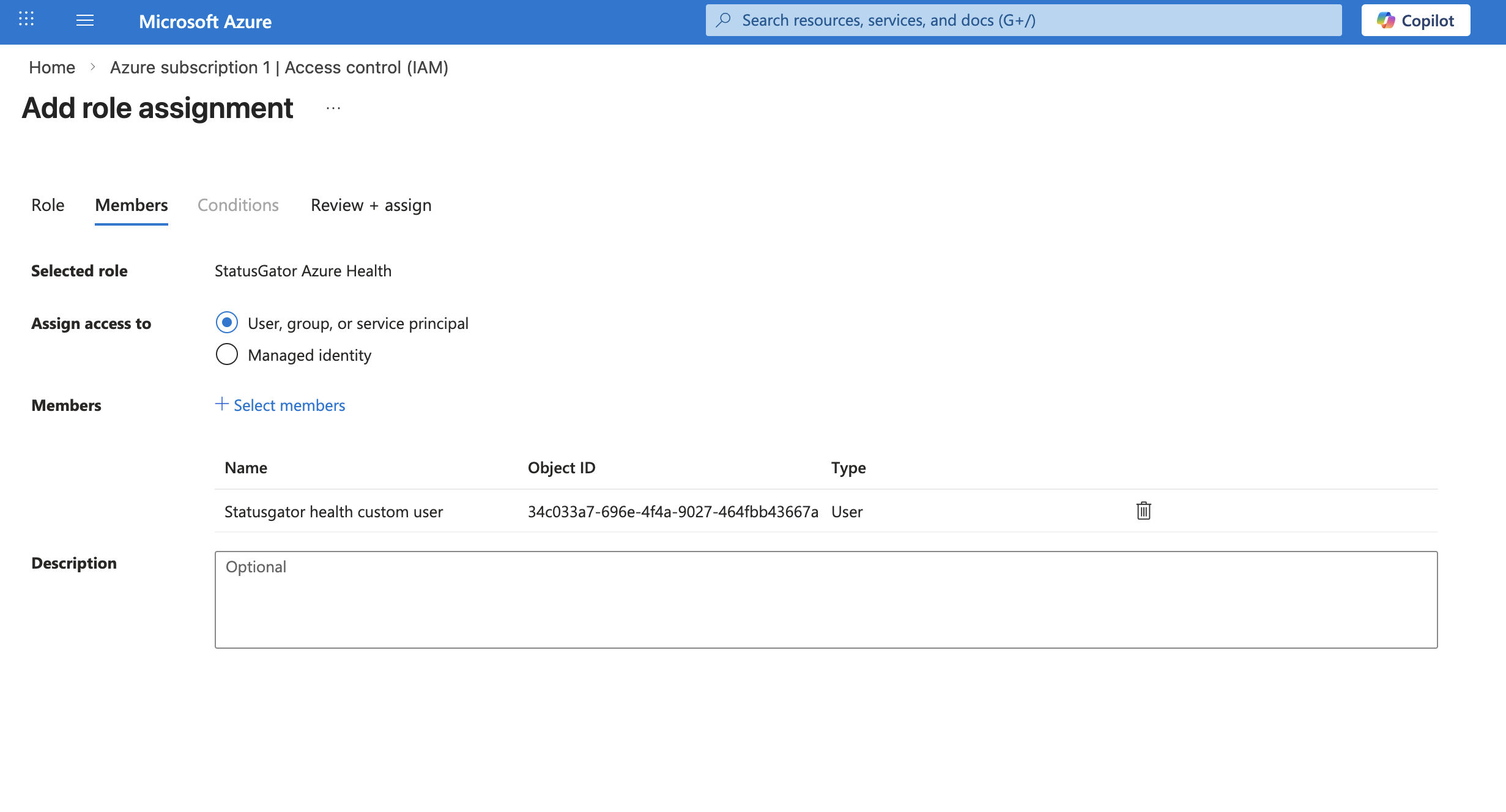
After creating the custom role, assign it to the Azure user you created earlier.
In the Azure portal, go to
Resource Manager → Management groups.
Select the management group where you created the custom role.
Open Access control (IAM).
Click Add and select Add role assignment.
In the Role tab, find and select the custom role you created earlier.
Click Next.
In the Members tab:
- Select User, group, or service principal
- Click Select members
- Search for the Azure user you created in Step 1
- Select the user and click Select
Click Next.
Review the configuration and click Review + assign.
The role will now be assigned to the integration user, allowing StatusGator to read Azure Resource Health data at this management group level.
If you want StatusGator to monitor additional management groups, repeat this process for each management group you want to grant access to.
Step 6. Connect Azure in StatusGator
Once the Azure configuration is complete, connect the account in StatusGator.
- Open StatusGator.
- Navigate to Private status.
- Select Azure integration.
- Click Add integration.
- Choose Connect with Microsoft.
- Sign in using the Azure user created earlier.
After authentication succeeds, StatusGator will begin retrieving Resource Health data from Azure.
What happens after connecting
Once the integration is active, StatusGator will automatically monitor Azure Resource Health events and display them in your dashboard.
You will receive alerts for:
- Azure outages affecting your resources
- Service degradation
- Maintenance events
- Availability status changes
- Emerging issues reported by Azure
Because the integration uses the Resource Health API, alerts are specific to your subscriptions and resources, not just global Azure incidents.